


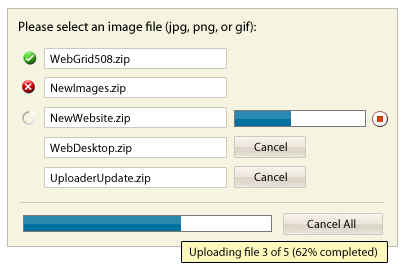
- When a file upload is in progress, a progress bar will be shown next to it displaying the current upload progress.
- Intuitive status indicators make it easy for users to understand the file upload status. Successfully uploaded files will be marked with success indicator, as well as failed or canceled files. To see the error message of failed upload, simply mouse over on the error indicator.
- User can abort the currently uploaded file by clicking on the Abort button next to the progress bar. When an upload is aborted, WebFileUploader will process to the next pending uploads.
- User can also cancel pending uploads by clicking on the Cancel button. Ultimately, user can click on Cancel All button in the status area to cancel all uploads. When cancel all is invoked, WebFileUploader will delete the successfully uploaded files, abort the current file in progress, and cancel pending uploads.
- The overall progress bar is shown in the status area displaying the total progress of all uploads. Hover on the overall progress bar area to see the detailed progress information.
 See Also
Other Resources
{Selection Experience}
{Completion Experience}