


In Preview mode, user can preview the content before it is printed or further processed. When enabled, Preview tab will be added to the footer row, allowing user to switch to Preview mode easily. Besides using the Preview tab, user can click on Preview command in main toolbar to preview the content.
When editing the content in Design view, several internal styles, such as default font names and size, table and media frame style, etc, are loaded to WebTextEditor, allowing user to differentiate the elements in editor easily. These internal styles will not be loaded automatically when user preview the content in Preview mode. To include the styles when previewing or printing the content, simply set UseDefaultEditorStylesForPrint property to true.
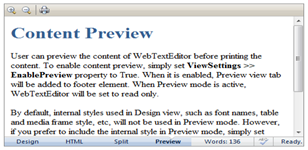 Internal styles are not loaded in Preview mode |
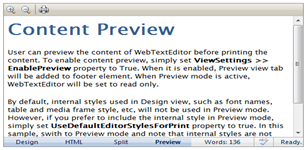 Internal styles are loaded in Preview mode |
When Preview mode is active, main toolbar will be switched to Preview toolbar, that contains Zoom In, Zoom Out, and Print commands. By default, the zoom value used in WebTextEditor is 10%. This value can be modified in ViewSettings >> PreviewZoomValue property.
 See Also
Other Resources
{Rich Design View}
{Adaptive HTML View}
{Intuitive Split View}