


When WebTextEditor is integrated to WebFileUploader, user is able to upload files using Insert from Computer command in task pane toolbar. The uploader callout will be displayed when the command is clicked, allowing user to select multiple files to upload.
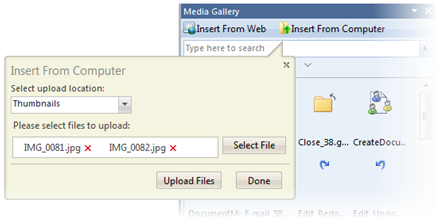
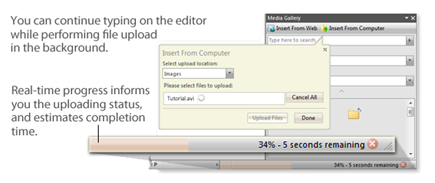
When Upload Files button is clicked, the files will be uploaded. Pink-colored progress bar will be displayed in status bar, indicating the progress status of uploading process. During this process, user can continue editing the content, without having to wait for the uploading process to finish.
When integrated to WebFileUploader, the following configurations can be set in FileUploaderSettings property:
- Enabled
Specifies whether or not file uploader is enabled.
- DefaultUploadPath
Specifies the default upload path in case none is specified in media resource.
- DefaultUploadMediaResource
Specifies the default media resource that is used as default upload path.
- AllowCancel
Specifies whether or not the uploading process can be cancelled.
- FilesCount
Specifies the maximum number of files that can be uploaded in a single uploading process.
- FileTypes
Specifies the types of files that can be uploaded.
- UploadSizeLimit
Specifies the maximum size of an uploaded file.
- TotalUploadSizeLimit
Specifies the maximum size of total uploaded files.
In addition to the above configurations, the media resources where the files upload is allowed should have AllowUserUpload property set to true.
In This Section
Walkthrough: Integration with WebFileUploader
 See Also
Other Resources
{Integration with WebSpellChecker}